
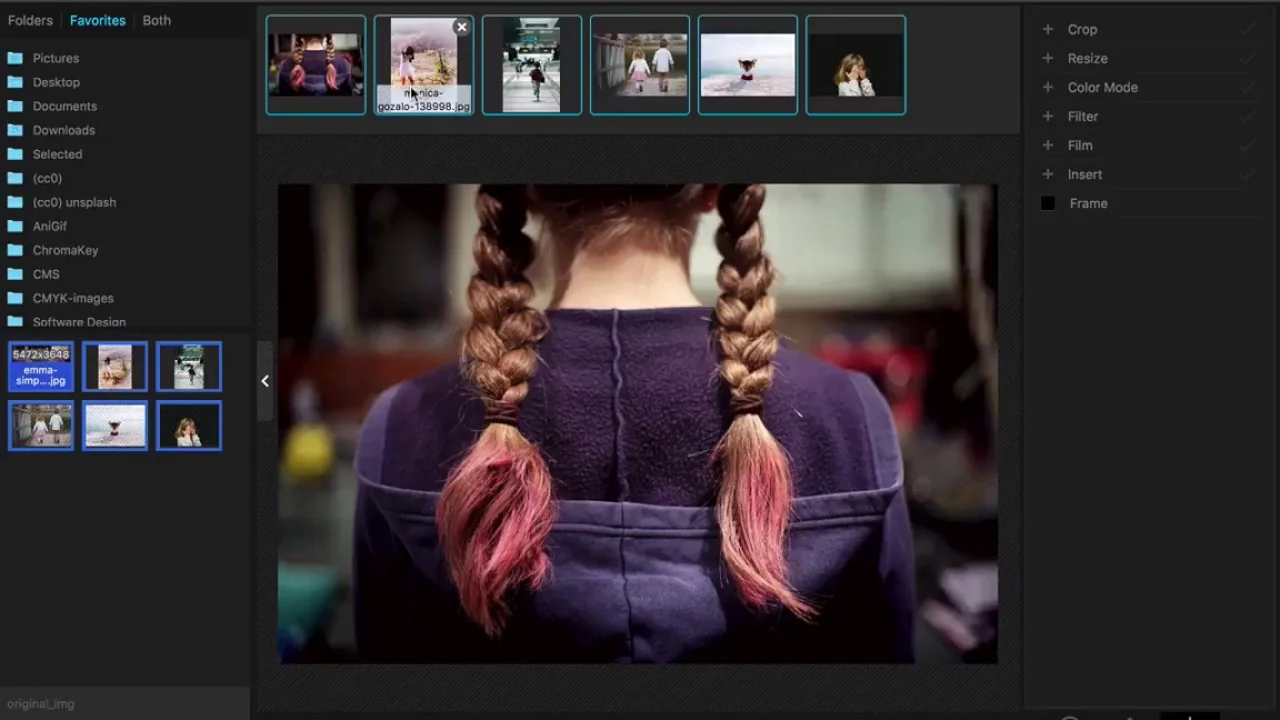
How PhotoScape 3.7 Works as a Standalone Portable Application
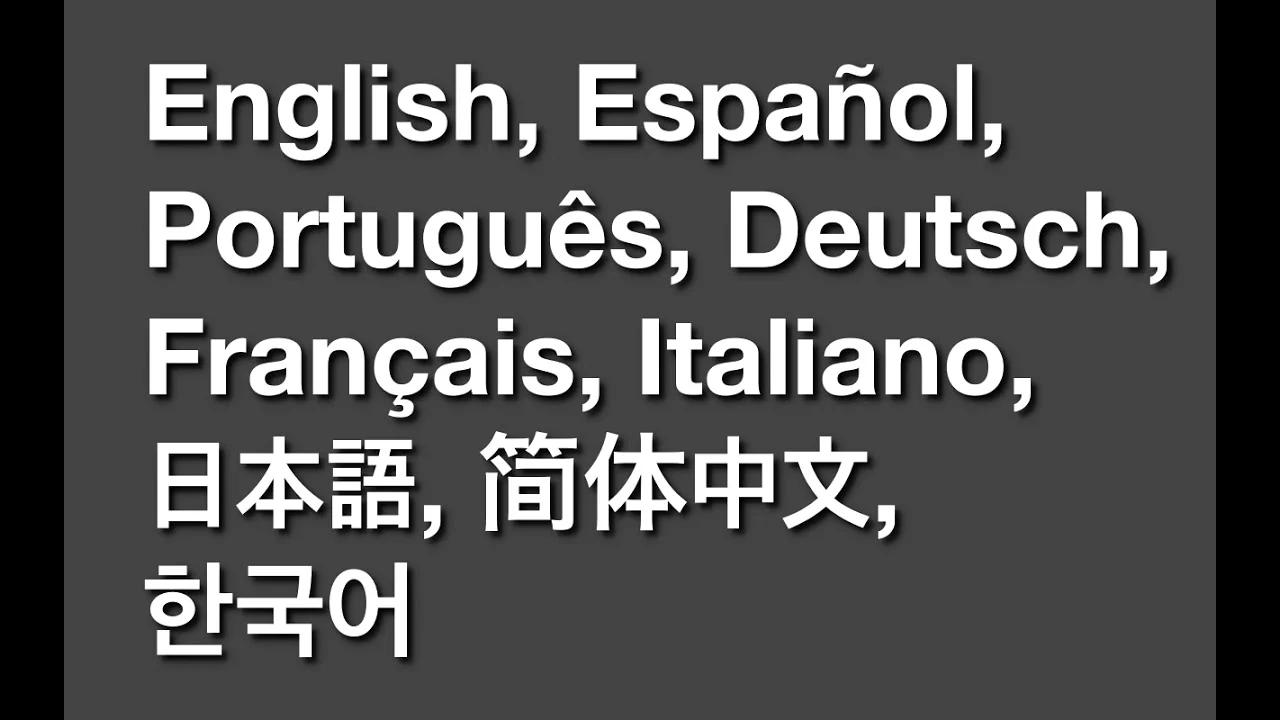
PhotoScape 3.7 is architected as a self-contained Win32 C++ executable (PhotoScape.exe) that links only against standard Windows system DLLs (gdiplus.dll, user32.dll, comctl32.dll) and stores all 120+ frames, brushes, and 34 language packs inside its own application directory without requiring background services or COM registration.
Because the program folder has zero external runtime dependencies (no .NET Framework, Java, or Visual C++ redistributable required), you can copy the extracted PhotoScape directory onto any FAT32, exFAT, or NTFS USB flash drive and launch it on any Windows 7, 8.1, 10, or Windows 11 workstation.
Two Ways to Create a Clean PhotoScape 3.7 Portable USB Drive
Method 1: Extract the Official Setup Package with 7-Zip (Zero Install)
If you are on a locked-down office, university, or library computer where Windows User Account Control (UAC) blocks standard installers, you can unpack the standalone setup archive directly without running the installer:
- Download the official
PhotoScapeSetup_V3.7.exe(20.4 MB) above or from our main Download page. - Right-click
PhotoScapeSetup_V3.7.exeand select 7-Zip → Extract to "PhotoScapeSetup_V3.7\" (since the package uses Nullsoft NSIS compression, 7-Zip and PeaZip open it like a standard archive). - Move the extracted folder to your USB drive (for example,
E:\PortableApps\PhotoScape\) and double-clickPhotoScape.exeto launch immediately without admin prompts.
Method 2: Copy the Installed Directory from Your Home PC
If you already installed PhotoScape 3.7 on your home computer, open C:\Program Files (x86)\PhotoScape, copy the entire folder (roughly 48 MB uncompressed) onto your USB thumb drive, and create a shortcut to PhotoScape.exe. Every module — including Batch Resize & Watermark, Page Collage, Animated GIF, and 300 DPI Passport Printing — works identically from removable storage.
Technical Comparison: Standard Installer vs. Portable USB Folder
| Specification | Standard Installer (Setup.exe) | Portable USB Extraction |
|---|---|---|
| Administrator Rights Required | Yes (writes to Program Files (x86)) | No (runs from user folder or USB drive) |
| Disk Space on USB / SSD | 20.4 MB download / 48 MB installed | 48 MB uncompressed on USB stick |
| Windows File Associations | Optional (.jpg, .png, .gif) | Leaves host PC file associations untouched |
| Cold Startup Speed (USB 3.0) | 0.35 seconds (NVMe SSD) | 0.55 seconds (USB 3.0 Flash Drive) |
| Included Editing Modules | All 12 modules + 34 languages | All 12 modules + 34 languages |
Tips for Using PhotoScape Portable Across Multiple Computers
- Keep Batch Output Paths Relative to Your USB Drive: When running Batch Resize on a guest computer, choose Create output folder under the first photo's folder so exported images stay on your USB drive rather than on the host PC's C: drive.
- Enable 4K High-DPI Scaling Per Host PC: If you plug your USB drive into a high-resolution 4K laptop, right-click
PhotoScape.exeon the USB drive → Properties → Compatibility → Change high DPI settings and enable System (Enhanced).
Frequently Asked Questions
Does PhotoScape Portable leave personal photos or temp files on the host computer?
No. PhotoScape processes bitmaps directly in system RAM and writes saved files only to the folder you select. No cloud cache or temporary image thumbnails are left in the host PC's AppData directory.
Why should I avoid third-party '.paf.exe' portable wrappers from unknown sites?
Unofficial portable repackagers often bundle adware or outdated v3.5 binaries. Extracting the official v3.7 installer yourself (verified via our SHA-256 checksum on the Download page) guarantees a 100% clean binary.
Can I make PhotoScape X (64-bit) portable on a USB stick?
PhotoScape 3.7 is the recommended portable edition because it is a 48 MB standalone Win32 folder with zero external dependencies, whereas PhotoScape X is a 356 MB UWP/AppX package tied to the OS store container.
Will PhotoScape Portable run on Windows 11 24H2?
Yes. Extracted PhotoScape 3.7 folders execute natively on 64-bit Windows 10 and Windows 11 24H2 without installation.